Sunday, March 22, 2015

DTP - Draw Toolpath Utility

DTP

Draw Wire EDM Toolpath

DTP is the Draw Tool Path utility. I wrote this program in 1994 to draw Wire EDM toolpaths on HP LaserJet M4 laser printers or on Tektronic 4662 plotters.

This program can be use from a VT100 (non-graphic) terminal.

It implements a command language with variables and expression computations. These commands can be written in a text file to create scripts and sourced into DTP,  in fact, creating more powerful commands.

The plotting utility supports the following devices:

·         HEWLETT PACKARD LaserJet printer (or any devices implementing the HPGL language).  Paper format: 8.5" x 11"; prints in a 7.5"x 10" window.
I was able to program the LaserJet 4M printer using the Postscript language and also in HPGL (Hewlett Packard Graphics Language).
Hewlett Packard LaserJet 4m Printer.
Picture 1: Hewlett Packard LaserJet 4m Printer.


·         TEKTRONIX 4662 interactive plotter.  Paper format: 15" x 10".

Tektronix 4662 Interactive Plotter.
Picture 2: Tektronix 4662 Interactive Plotter.


The program operates from a terminal.
This is an example of a screen from a terminal session:
A page in French from the User Manual.
Picture 3:  A page in French from the User Manual.

This is the UNIX manual page

NAME
     dtp  - draw wire EDM toolpath (an alternative to the PDP-11)

SYNOPSIS
     dtp [ISO_source] [-s cmdfile]

DESCRIPTION
     dtp is a utility program that enables you to draw ISO part
     programs on an Hewlett Packard laser printer or on a TEKTRONIX 4662
     plotter.

     When dtp is called, your terminal screen is divided in two sections:
     - The fisrt 20 lines are used to give commands and see output messages.
     - The last 4 lines are reserved for the display of a status window.  The
       status windows is describe in great details later in this document.

ARGUMENTS
     ISO source  This parameter designates the name of the ISO source file
                 to use.  If none is specified, the one from the previous
                 session is reused.

     -s cmdfile  Dtp reads commands from 'cmdfile' upon start.

     The order of the arguments is not important and they are all optional.

ARITHMETIC EXPRESSIONS
     At any place where a numerical value is expected, it is possible to
     supply an arithmetic expression.

     To construct the expression, the following operators are available:
       ^    : power elevation              (Utter most precedence)
       *, / : multiplication, division     (high precedence)
       +, - : addition, subtraction        (low precedence)

     Also, some functions are available:
      abs(arg)  Returns the absolute value of arg.
      sin(arg)  Returns the sine of arg (arg is spec in degrees).
      cos(arg)
      tan(arg)
      asin(arg)
      acos(arg)
      atan(arg)
      sqr(arg)  Returns the square of arg.
      sqrt(arg) Returns the square root of arg.

     Arithmetic expressions can include variables.  To create a variable, you
     simply assign a value to it.  For example:

        x = 4+3              # x = 7
        y = sin(30)+x        # y = 7.5
        y = -y/2             # y = -3.75
        pi = 4*atan(1)       # pi = 3.14159265358979323846...

      You can use any name for a variable as long as it is not a function
      name (i.e. 'sin') or a command name (like 'quit').

      You cannot insert space characters in an expression because they are
      used as token separator.


COMMAND LANGUAGE

     Underlined arguments can be arithmetic expressions.
     As you will notice, almost all the commands have a long and a short form.
     The language is case sensitive like UNIX.

     quit
     q              Quit the application.

     preview
     p              Display in a GL window the drawing as it would be output
                    on the selected output device (laser printer or plotter).
                    The graph will appear on the display of the workstation
                    even if you use dtp from a VT100 terminal.

     help
     h              Display this manual page on the terminal.  This manual page can
                    also be read from the shell by issuing the command help dtp.
                    The text is displayed by more so you man scroll forward or
                    backward throught the text and even perform searches.  Refer
                    to the manual page of more for more details on more.

     zoom sfac
     z    sfac      Zoom the drawing (about the origin) by the scale factor sfac.
                    The scale factor shall be greather than zero.
                    The current zoom factor is always indicated in the status window.
                    Example: z .5

     zoom sfac x y
     z    sfac x y  Zoom the drawing (about the point x,y) by the scale factor sfac.
                    The focus point x,y is automatically placed in the viewport`s
                    center.  For this reason, this command turns off the automatic
                    centering of the drawing.
                    The current zoom factor and focus point are always indicated in
                    the status window.
                    The default system of measure use to express the coordinates of
                    the focus point depends on the units xy command.
                    Example: z 6 2.5 0

     tr x y         Translate the drawing by x and y.
                    The coordinates x and y represents either inches or millimeters
                    depending on the units xy command.
                    Note that the magnitude of the translation is not affected by a zoom.
                    The current translations can be found in the status window.
                    The special variables tx and ty always contain the current
                    translations and can be use in arithmetic expressions.
                    Example: tr 2 2*1.1

     source cmdfile
     s              Dtp reads commands from 'cmdfile'.  Source commands may be
                    nested.  The 'cmdfile' is expected to be found in the directory
                    ~/dtp.

     origin x y
     or     x y     Move the origin to the specified coordinates.  The coordinates
                    are viewport relative, where (0,0) is at the lower left corner
                    of the viewport.
                    The coordinates of the current origin can be found in the status
                    window.
                    By default, the origin is positionned at the center of the viewport.
                    The special variables ox and oy can be use in arithmetic expressions.

     off val
     o   val        Specify an explicit offset (always in mm) to be used when
                    computing the toolpath.
                    Ex.: off .2
                    This selection is preserved from one session to the next.

     offtab name   
     ot     name    Specify the name of a table of offsets.
                    Ex.: offtab GEN
                    This selection is preserved from one session to the next.

     cl val         Specify a clearance (always in mm) to be used when computing
                    the toolpath.
                    The current clearance is displayed in the status window.
                    Ex. cl .020
                    This selection is preserved from one session to the next.

     mach number   
     m    number    Select an EDM machine.  The currently selected machine is
                    displayed in the status window.
                    This selection is preserved from one session to the next.
                    Ex.: m 13

     iso fname      Specify the name of a new ISO source file to use.
                    If you specify "auto", then the source file will be chosen
                    automatically.  The ISO file is expected to be found in the
                    current working directory.  Use the command cd to change the
                    current working directory.

     verify [zval]
     v      [zval]  Verify the toolpath at the level zval.  If zval is not
                    specified, the toolpath is verified at Z = 0.

     verify z zprimary zsecondary
     v      z zprimary zsecondary
                    Verify the toolpath at two specific levels.
                    Ex.: v z 0 -50

     verify Z from to step
     v      Z from to step
                    Verify the toolpath for the levels between from and to. Step is the
                    incrementation.
                    Ex.: v Z 0 50 2
                         v Z -50 0 -2

     verify xz
     v xz           Verify the toolpath using exactly the options specified in XTpgen.

     draw [zval]    The command draw acts exactly like the command verify except that
                    a page is output.
     d    [zval]

     draw z zprimary zsecondary
     d    z zprimary zsecondary

     draw Z from to step
     d    Z from to step

     draw xz
     d    xz

     drawaxis
     da             If you whish to see two lines representing the X and Y axis,
                    use this command instead of draw.

     viewport x1 y1 x2 y2
     vp x1 y1 x2 y2
                    This command is used to define the current viewport.  The
                    coordinates (x1,y1) define the position of the lower left corner
                    of the window.  (x2,y2) define the position of the upper right
                    corner.
                    When clipping is in force, anything outside the viewport is
                    removed from the drawing.
                    The drawing is also centered in relation to this window.
                    ....bla...bla...bla...
                    For the TEKTRONIX plotter, the largest viewport
                    is 0.01 0.01 14.99 9.99 otherwise you will get some problems.
     center y|n    
     c      y|n     When this mode is in force, the rectangle surrounding the whole
                    drawing is computed. The center of that rectangle is found and
                    moved over the origin defined by the command origin.

     clip y|n       When this mode is in force, any geometry outside of the viewport
                    is eliminated.

     frame y|n      When this mode is in force, a rectangle is drawn a delimitating the
                    viewport.

     report y|n     This command enables you to get a report from tpgen when verifying
     r      y|n     or drawing a program.

     append y|n
     a      y|n     Usually, a new drawing is output each time a draw command is issued.
                    If the append command is used, from that moment on, the next drawings
                    will be appended to the file ~/plots/plotfile.  This makes it possible
                    to combine several drawings on the same page.
                    When the page is ready to print, you must use the command flush to
                    effectively output it.
                    The status of that mode is indicated in the status window.

     flush
     f              Outputs to the printer or plotter the drawing appended to the
                    plotfile by using the command append followed by one or several draw
                    commands.  This command may also be used to reprint the last page.

     clear
     c              Remove all the drawings appended to the plot file.

     load optfile
     l   optfile    Load the options (chosen from XTpgen) from the file
                    'optfile'.  The file will be taken from the directory
                    ~/dtp.

     select hp|tek
     sel    hp|tek  Select the LaserJet or Tektronix 4662 as output device.
                    The variables pw, ph are reset to their correct values.
                    A command or pw/2 ph/2 is also issued automatically
                    to position the origin at the center of the page.

     units [xy] mm|in
     u     [xy] mm|in   
                    Let you use metric or english units of measure to specify XY
                    dimensions.
                    The following commands have their arguments affected by this mode:
                    - scale sfac x y
                    - tr x y
                    - origin x y
                    Ex.: u mm

     units z mm|in
     u     z mm|in  Let you use metric or english units of measure to specify Z
                    dimensions.
                    The following commands have their arguments affected by this mode:
                    - verify
                    - draw
                    - drawaxis
                    Ex.: u z in

     cls            Clear the screen.

     dump           Dtp will print all the variables currently defined with their values.

     !shellcmd      Dtp will spawn a shell and 'shellcmd' will be executed by that new
                    shell.

     # comments     Any line where the first caracter is '#' is ignored by dtp.  This
                    feature may be use to comments files of commands.


SPECIAL VARIABLES
     pw
     ph
     ox
     oy
     tx
     ty
     x1
     y1
     x2
     y2

The Microsoft Word User Manual

This is the Word User Manual:
DTP - Manuel de l'utilisateur


An Excerpt from the Application - The Parser

If you wish to see how the parser was implemented, take a look at the Parser Example.

Saturday, March 21, 2015

DP Expert

DP Expert

Description en français

DP Expert est une application utilisé dans une usine exploitant plusieurs machines à électro-érosion à fil. 
Ce logiciel permet de séparer de la programmation des programmes de coupe les détails spécifiques à une machine donné et donne aussi beaucoup de flexibilité aux personnes de la production. 
Avec ce logiciel, les opérateurs des machines peuvent couper des pièces et choisir eux-même la machine et plusieurs paramètres.

Voici le manuel de référence d'une version bêta du logiciel:

Le système DP Expert - Manuel de référence


Note: Ce document est stocké sur l'un de mes Google Drives. Le formatage n'est pas parfait quand ce document est consulté en-ligne, mais vous pouvez le télécharger sur votre ordinateur et le consulter avec Word si vous le désirez.

Description in English

DP Expert is an application used in a plant with several wire EDM machines. 
This software allows to separate the specific details of of part programs programming from a given machine and also gives a lot of flexibility to the people of production.
With this software, operators can cut pieces and choose themselves the machine and several parameters.
Here is the reference manual of a beta version of the software:

Le système DP Expert - Manuel de référence


Note: This document is stored and shared from one of my Google Drives. The formatting is a bit changed when viewed on-line, but you can download it to your computer and read it using Word if you wish.

Thursday, March 19, 2015

IPC - Inter-Process Communication

TCP/IP - Inter-process Communications

  1. In computer science, inter-process communication (IPC) is the activity of sharing data across multiple and commonly specialized processes using communication protocols. Typically, applications using IPC are categorized as clients and servers, where the client requests data and the server responds to client requests.
This post describes some of my skills involving TCP/IP inter-process communication.

While I was a consultant at the CN, to improve the speed of MPS, the Motive Power System or LMS, the Locomotive Management System, I have implemented Remote Procedure Calls to speed things up.

This is a Word document I wrote describing the API (Application Program Interface) for programmers explaining how to use my modifications:
MPS Performance Improvement Using RPC — Remote Procedure Calls


Note: This document is stored and shared from one of my Google Drives. The formatting is a bit changed when viewed on-line, but you can download it to your computer and read it using Word if you wish.

Saturday, February 14, 2015

Inspection A-30

Projet du parachèvement de l'autoroute 30 en PPP

J'ai eu la chance de participer un peu à ce projet en partenariat public-privé (PPP) entre le gouvernement du Québec et le consortium Espagnol IRIDIUM.


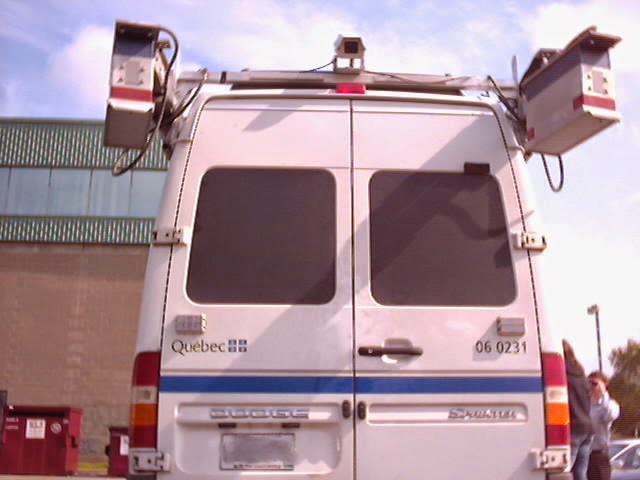
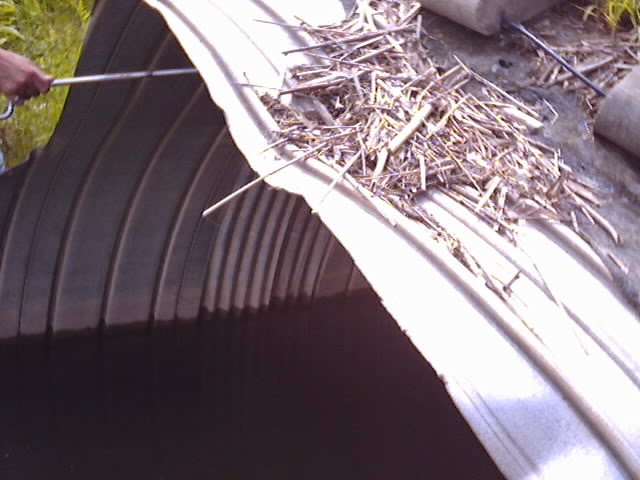
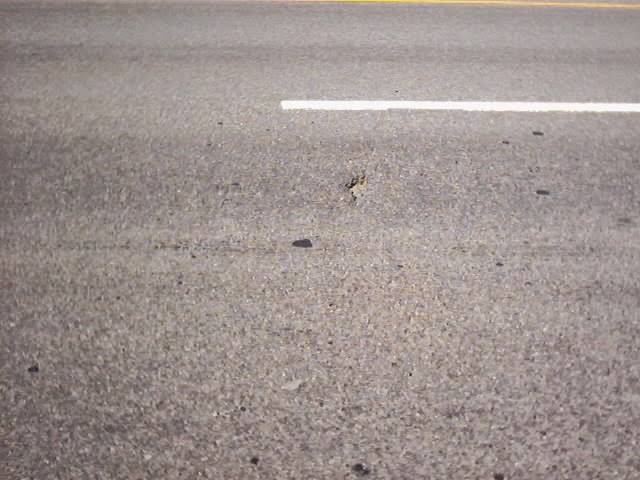
Voici quelques photos que j'ai prises avec une très mauvaise web caméra Logitech ClickSmart 510 (0,3 méga pixels) cette journée là, le 21 juillet 2008:


Voici le rapport préliminaire que j'ai rédigé très rapidement pour faire mon compte rendu à mon client GIE Technologies:


Rapport préliminaire de la journée de lundi le 21 juillet 2008
Projet de parachèvement de l’A-30
Compte rendu de l’auscultation des pavages par
Le MTQ, Iridium et GIE

Données techniques et explications sur les systèmes

Le système sur le camion à été monté/conçu par M. Benoit XXXXXX du MTQ à Québec, 418-644-0000 ext. 0000.  On peut lui poser des questions techniques sur le système car il le connaît très bien, mais il est possiblement présentement en vacances.  Sinon on peut contacter Jean-Maurice XXXXXX au 418-646-0000.

Ils sont ISO 900X.  Donc, ils documentent pas mal tous les problèmes et les procédures qu’ils utilisent.

On m’a dit que le camion, ses équipements, logiciels et efforts de développement ont coûtés > 1M$.

L’alimentation électrique est fourni par une génératrice.  Le camion et la génératrice fonctionnent sur le réservoir diesel du véhicule.  Il faut que le réservoir soit toujours plus haut que le quart, sinon la génératrice peut s’arrêter.

Avec le système, on peut aller à 70 Km/h maximum pour faire de l’acquisition de données.

Il y a cinq ordinateurs dans le camion.  Je sais que l’un d’eux est dédié pour les lasers.

Le système d’exploitation est Windows Server 2003.

Les machines sont reliées en réseau.  Les processus communiquent entre-eux par des TCP/IP Network Sockets.  La bande passante du réseau est de 1 Gbps.  En tous cas, c’est le Link Speed que j’ai vue en allant dans l’onglet Networking de Windows Task Manager.  Ce qui est approximativement 10 fois plus rapide que la vitesse du réseau interne chez GIE, qui est de 100 Mbps.

L’ordinateur principal, celui qui permet de contrôler les autres, semble posséder 4 CPU et a 4 Go de mémoire vive.  Je n’ai pas vérifié les caractéristiques des autres machines.

Il y a un seul clavier.  Dans le clavier il y a une Track Ball en guise de Pointing Device.  À la fin de la journée, j’ai su que l’on pouvait déplacer le pointeur de la souris sur un autre écran pour prendre le contrôle de l’ordinateur relié à cet écran.  Mais il ne font pas cela en temps normal.  Habituellement, l’opérateur contrôle tous les systèmes à partir de l’écran du centre.  Donc, quand on commence une acquisition, les noms de fichiers ainsi que les commandes appropriées sont envoyées à tous les autres systèmes pour les faire démarrer et s’arrêter le moment venu.

Ils ont au moins deux disques de 500 Go qui servent à ramener les données au bureau après une journée de travail.  Il y a aussi d’autres disques dans les ordinateurs.  Je ne connais pas tous les détails, mais je sais que les données recueillie doivent être traité après par d’autres logiciels.

La technicienne, Susan XXXXX, cinq ans d’expérience, m’a dit que le système ramassait approximativement 1 Go/Km.

Sur le pare-chocs avant, système avec 3 lasers pour mesurer l’IRI (Indice de Rugosité International).  En fait, c’est le système de Dynatest.  Mais une version différente de celle que j’ai vue en Oklahoma et au Tennessee.  Le système est contrôlé par l’ordinateur qui affiche sur l’écran de droite.  Ce système fut développé par GMR je crois.

Sur le toit du camion, on aperçoit 2 caméras qui regardent en-avant.  En arrière, il y a une caméra qui regarde la chaussé.  Ces caméras sont contrôlées par l’ordinateur qui affiche sur l’écran de gauche.  Le logiciel s’appelle GEO3D et a été développé par INO (Institut National d’Optique). Voir www.ino.ca.  Semble-t-il, qu’on peut cliquer avec la souris sur un objet, un puisard par exemple, et cliquer sur le même objet dans l’image suivante, et que le système peut calculer les coordonnées GPS de l’objet en question.  Donc, il peut calculer les distances en 3D.  Ce logiciel s’appelle TRIDENT, il me semble.

Avec les profiles laser, il ont un logiciel expérimental qui peut donner automatiquement des noms aux fissures.  Ça ne marche pas dans tous les cas, c’est pourquoi ils peuvent se référer à l’image de la caméra arrière pour qu’un humain vérifie.  Le logiciel réalise la classification des ornières à court et à grand rayons, selon leur sévérité.
À un moment donné, il y avait un problème avec l’ordinateur gérant les lasers.  On peut tirer sur une poignée, comme pour un tiroir, et un clavier sort et un écran se déploie.

Le MTQ a un inventaire de toutes les routes, intersections, etc.  Par exemple, avant de faire une saisie de données, le conducteur pouvait dire à l’opératrice quelque chose du genre:
“Route 00158, Section 00062D, Direction 1, Voie 1, Distance 4+800 m.”
L’opératrice entrait ces informations dans une boîte de dialogue et aussi dans un chiffrier Excel, où elle pouvait ajouter des commentaires, comme par exemple “Gazon sur la route”, ou “Le système ne s’est pas enclenché”.  Le système pouvait ensuite automatiquement s’enclencher  quand le véhicule atteignait les coordonnées GPS et s’arrêter après que le DMI ait parcourue la distance pré-établie.

Le système d’ornières affiche sur l’écran du milieu.  Chaque capteur laser recueille 2000 points sur 2 m.  Il y en a deux.  Voir aussi: http://www.ino.ca/fr/realisations/par-expertise/capteurs-3D/

Une note intéressante à remarquer:

Le système est assez complexe.  Il arrive que parfois, l’acquisition ne démarre pas, où que certains élément du systèmes envoient de fausses données (à un moment, le profile laser donnait des valeurs illogiques), et qu’il faille recommencer.  Je sais qu’on ne peut pas démarrer le système de profile laser sur une surface de gravier ou de gazon.  Il a fallu à deux reprises dans la journée “rebooter” certains systèmes.

Notes au sujet des caméras:

Ce sont des caméras Sony.
Résolution maximale de 1200 X 940.  Mais je crois qu’elles étaient utilisées en mode 800 X 800.

J’ai lu les spécifications techniques et constaté qu’elles peuvent être déclenchées par un TRIGGER.  Et un technicien m’a affirmé que c’était bien les cas.

J’ai noté que lorsqu’on procédait à une capture de données, les images étaient enregistrées dans un fichier .AVI.  Donc, c’est une vidéo clip.  J’ai demandé à la technicienne s’il était possible d’extraire les images individuelles de ce clip.  Elle ne savait pas, mais j’imagine que le MTQ à un logiciel pour faire cela.

À la fin de la journée, j’ai regardé un clip enregistré par la caméra arrière.  Disons qu’on pouvait distinguer les fissures sur l’asphalte, mais que l’image avait les couleurs un peu fades et que j’ai déjà vu mieux avec ICS.

En passant, les shutters des caméras étaient ajustés à 1/4347.8 sec (ou .23 ms) pour la caméra arrière et 1/1035.2 sec (ou .96 ms) pour les caméras avant.

Voici d'autres photos prises lors d'une autre journée (le 8 août 2008) où l'on a inspecté les abords des sections de l'autoroute pré-existante: